
HelpEcho allows you to convert incoming support emails directly into tickets using Email Piping. This means your customers can send emails, and those emails will automatically appear as support tickets in your HelpEcho dashboard—streamlining your workflow and ensuring nothing gets missed.
How Email Piping Works
When you configure a mailbox in HelpEcho, it generates a Forwarding Email Address. You need to forward incoming emails from your business support email (e.g., [email protected]) to this HelpEcho-generated address (e.g., [email protected]). Every forwarded message will automatically create a new ticket in your HelpEcho dashboard.
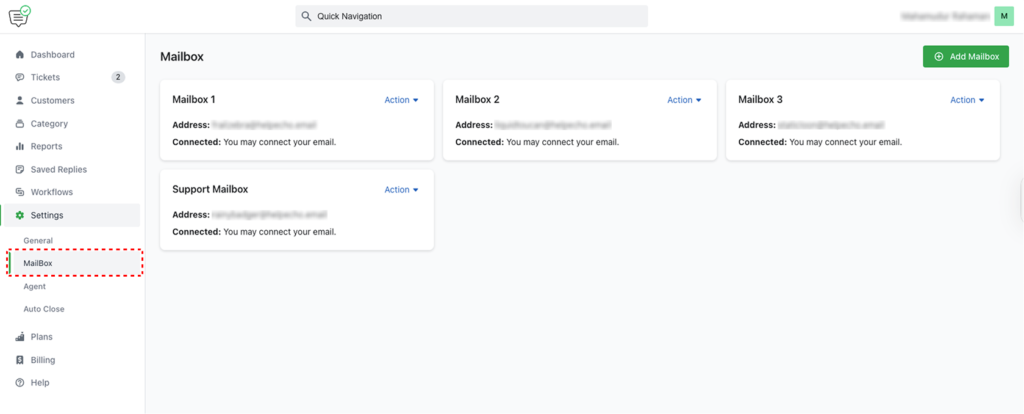
Step-by-Step: Configure Email to Ticket
Step 1: Add or Edit a Mailbox
Navigate to:
Settings → Mailbox → Mailbox Settings tab
- Title:
Enter a meaningful name for the mailbox, e.g., “Support Mailbox”. - Forwarding Email Address (Address):
This is the HelpEcho-generated address (e.g.,[email protected]). You will need to set up forwarding to this address from your business email (e.g.,[email protected]) using your email provider (Gmail, Zoho, etc.). Important: Set up forwarding in your email inbox—not inside HelpEcho. - Connected Email Address:
No need to mention or change anything here.
Step 2: Configure Mailbox Admin Info
- First Name / Last Name:
Add the mailbox admin’s name for internal reference. - Email Address (Admin Notification Email):
This is extremely important. It’s the email where ticket notifications (new ticket, reply, close) will be sent.
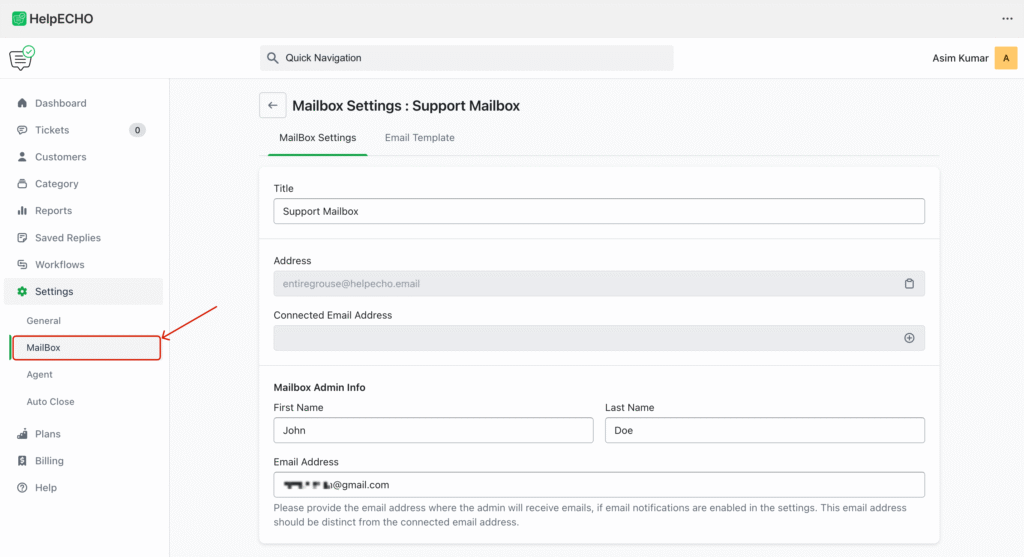
⚠️ DO NOT enter the same email address here that you’re forwarding from (e.g., [email protected]).
If you do, an infinite email loop may occur—each notification email would trigger a new ticket, causing endless ticket creation.
Example Use Case
- You use
[email protected]as your customer support email. - In your email provider’s settings, set up forwarding from
[email protected]to[email protected]. - Customers send emails to
[email protected]→ HelpEcho creates a ticket. - You get notified at a separate admin email (e.g.,
[email protected]).
Final Note
Ensure forwarding is correctly set up and tested. This setup allows your support agents to manage customer tickets without needing customers to access the HelpEcho portal directly.